 ← nuviaclean.com
Checkout preview
Review & confirm your booking
See the final confirmation controls without entering booking details.
This is a preview. No appointment is reserved, payment collected, message sent, or SMS consent saved. Real bookings require your service, appointment, location, contact details, and acceptance of the booking terms.
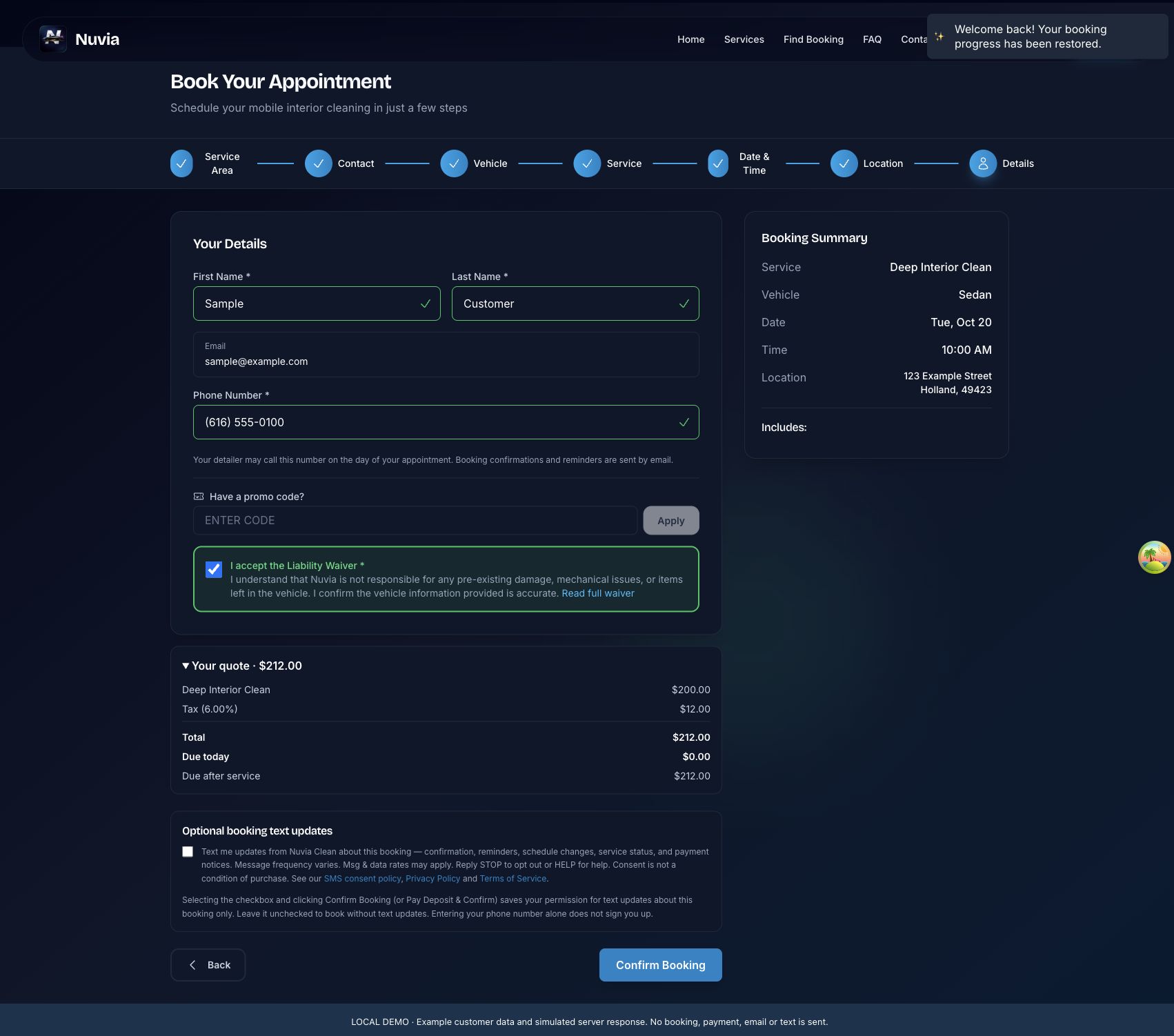
Read the consent wordingScreenshots of the booking interface
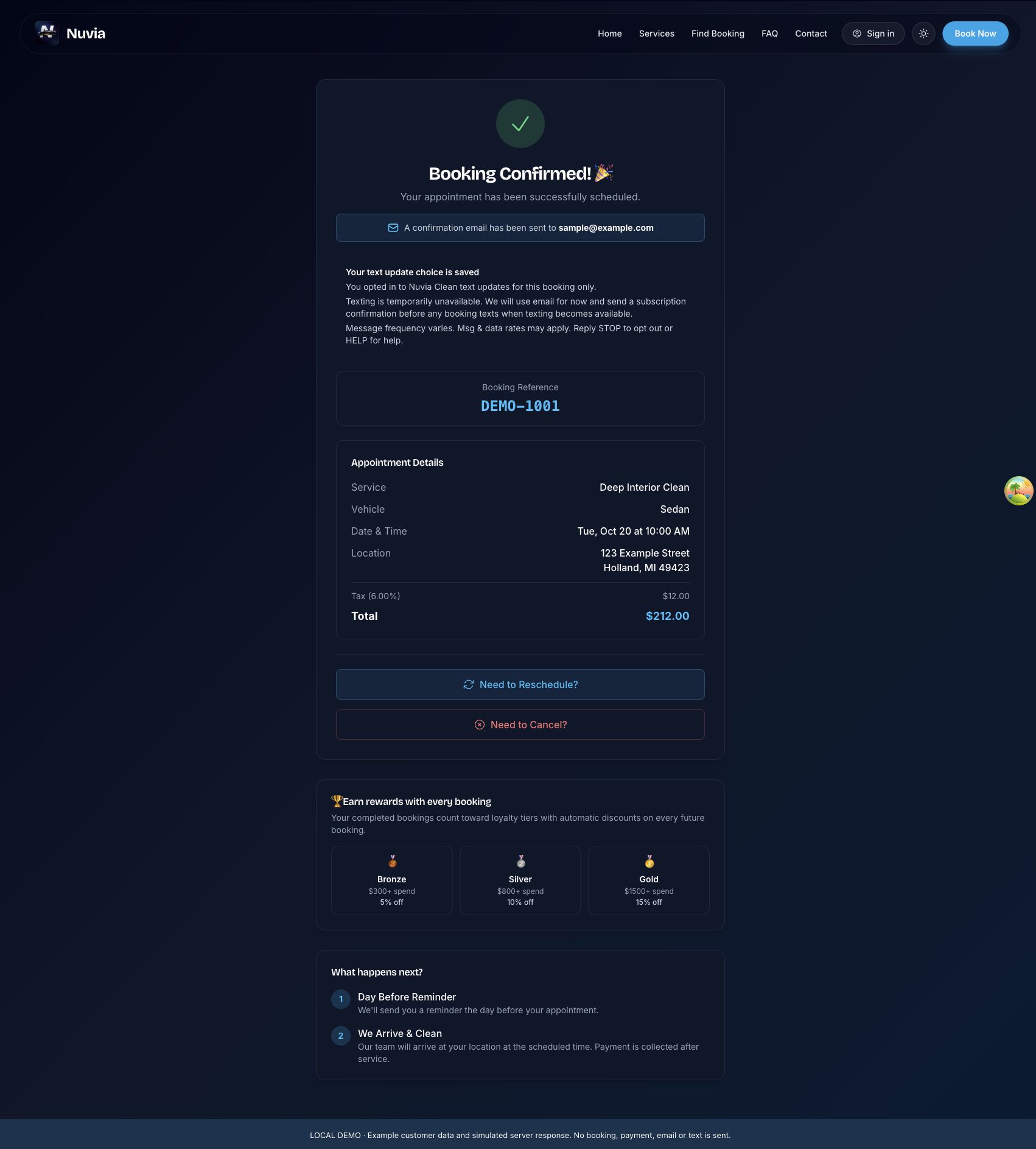
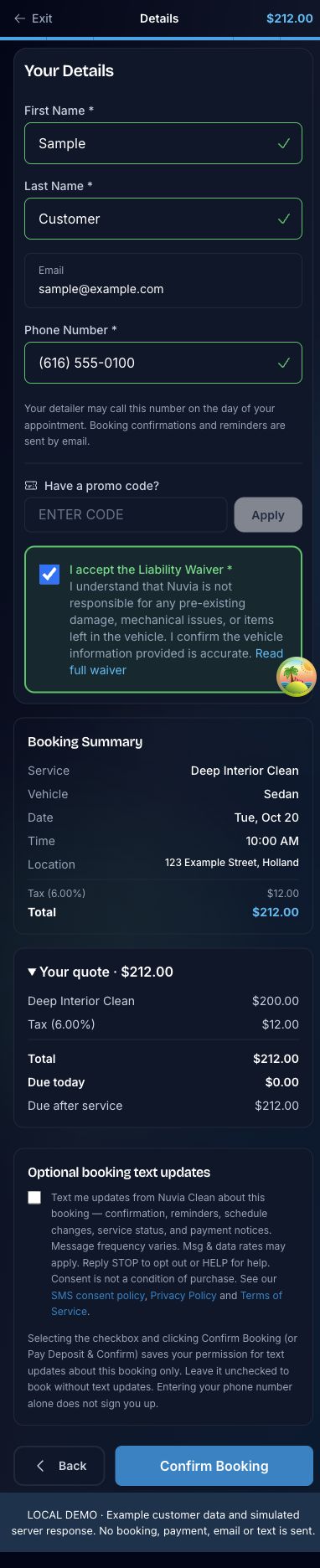
Captured October 11, 2026 from the actual website frontend running in a local test environment with example customer and appointment details. Server responses, including booking confirmation, were simulated. These images illustrate the real interface; they do not demonstrate a live booking, payment, consent record, or delivered text message.
How to choose booking text updates
- Open the booking form and enter your service ZIP code, email, vehicle, service, appointment, address, and contact details.
- On the final review screen, review your phone number. The optional SMS checkbox shown below starts unchecked. You can complete your booking with it unchecked.
- Select the checkbox only if you want text updates for this booking. Submit using Confirm Booking, or Pay Deposit & Confirm if a deposit is required, and complete any required payment.
- After a successful booking, the confirmation page reports whether your text update choice was saved. Consent applies only to that booking and the phone number submitted with it. A later booking requires its own choice.
Your booking details
Your selected service, appointment time, location, and price appear at checkout.
Optional booking text updates
Selecting the checkbox and clicking Confirm Booking (or Pay Deposit & Confirm) saves your permission for text updates about this booking only. Leave it unchecked to book without text updates. Entering your phone number alone does not sign you up.
Demonstration only: this button does not submit anything. When a real booking requires a deposit, its button reads “Pay Deposit & Confirm”.
After a real booking is confirmed
If your opt-in is accepted, the booking confirmation page says you opted in to Nuvia Clean text updates for this booking only. If the box is unchecked, it says you did not sign up and booking communications will be sent by email. If an opt-in cannot be saved, it says so and uses email. When texting is unavailable, the page explains that email is used for now; a subscription confirmation precedes any booking texts when texting becomes available.